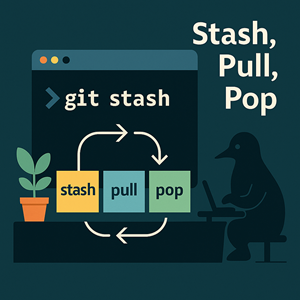
Picture this: It’s Friday at 4:55 PM. You’re three files into a refactor when a teammate pings: “Hotfix merged to main—please pull.” Heart rate spikes. Half your edits are mid‑surgery. Do you commit junk? Risk losing work? Neither.
git stash is your freeze‑ray: pause work, pull safely, then unpause. No drama.
TL;DR
This section is your quick-start. If you’re in the middle of work and need to sync with upstream fast, these three commands safely park your edits, pull the latest changes, and put your work back on top. Use it when you don’t want to commit half-finished code but still need to update your branch.
Need to pull but you have local changes?
|
1 2 3 4 |
git stash push -u -m "pre-pull" # include untracked files git pull --rebase # or just `git pull` if your team prefers merges git stash pop # bring your work back |
If conflicts appear on pop, resolve ➜ git add ➜ (if rebasing) git rebase --continue.
What git stash actually does (and why it’s awesome)
A stash is a lightweight, local snapshot of your uncommitted changes. It lets you step back to a clean state to pull, switch branches, or run tests—then restore your edits exactly where you left off. It covers working‑tree changes and, if you choose, untracked or even ignored files.
- Saves your working tree edits (and optionally untracked/ignored files) into a local stack:
stash@{0},stash@{1}, … - Cleans your working dir so you can switch branches, run tests, or pull without committing half‑baked work.
- Local only: stashes aren’t pushed—your experiments stay on your machine.
Stash commands you’ll actually use
Use this as a practical toolbox. Each command is safe to copy–paste, and the comments tell you when to use it. Start with push/pop for everyday work; reach for apply when you want a safety net; and keep list/show handy to remind yourself what’s inside a stash before restoring it.
|
1 2 3 4 5 6 7 8 9 10 11 12 13 14 15 16 17 |
# Create git stash push -m "msg" # tracked changes only git stash push -u -m "msg" # include untracked files git stash push -a -m "msg" # include ignored (rare) # Browse & inspect git stash list git stash show -p stash@{0} # show patch for a stash # Restore git stash apply stash@{1} # apply but keep the stash git stash pop stash@{0} # apply then remove the stash entry # Delete git stash drop stash@{0} git stash clear # remove all (careful!) |
Power move:
|
1 2 |
git stash branch my-wip stash@{0} |
Creates a new branch at the commit where you stashed, then applies the changes there. Perfect for work you want to finish later.
Safe pull workflow when you’ve edited files locally
Use this sequence when you have edits but must update now. It keeps your working tree tidy and minimizes merge noise. It works on any branch; --rebase is recommended unless your team mandates merge commits.
- Stash your edits (include
-uif you created new files):
|
1 2 |
git stash push -u -m "pre-pull" |
- Update your branch:
|
1 2 |
git pull --rebase |
- Restore your work:
|
1 2 |
git stash pop |
- If there are conflicts, resolve them,
git addthe files, then continue (git rebase --continueif you were rebasing).
Nervous? Use
git stash applyfirst (keeps the stash as a backup), and drop it later once you’re happy.
Seeing what changed: diffs you’ll actually read
Diffs answer one question: “What changed, compared to what?” This section maps each command to a comparison target—your unstaged edits, your staged snapshot, your last commit, or the remote branch—so you can pick the right lens and avoid noise.
Working tree vs. last staged (unstaged changes)
Use when you want to preview what you haven’t staged yet—perfect before selectively git add-ing hunks or files.
|
1 2 |
git diff -- path/to/file |
What’s staged and ready to commit
Use this to review exactly what will be committed. Great for double-checking a surgical commit before you write the message.
|
1 2 3 |
git diff --staged -- path/to/file # alias: --cached |
Everything vs. the last commit
Shows both staged and unstaged changes relative to HEAD. Ideal for a full, end-to-end review of what’s different since your last commit.
|
1 2 |
git diff HEAD -- path/to/file |
Compare to remote (e.g., origin/main)
Helpful when you want to see what you’ve changed locally versus what’s on the remote branch—especially before opening a PR or after a teammate landed changes.
|
1 2 3 |
git fetch git diff origin/main -- path/to/file |
Make diffs easier to digest
These flags tune the signal-to-noise. Reach for them when whitespace churn or large hunks make diffs hard to read, or when you need word-level context.
|
1 2 3 4 5 |
git diff --word-diff -- path/to/file # word-level changes git diff -U0 -- path/to/file # zero context lines git diff --ignore-all-space -- path/to/file # ignore whitespace-only git diff -M -- path/to/file # detect renames/copies |
GUI / side-by-side
Prefer a visual diff? Configure once, then use git difftool to open a side-by-side view in your favorite tool. It’s the same diff data, but easier to scan for larger or more visual changes.
Configure once:
|
1 2 3 4 5 |
git config --global diff.tool vscode git config --global difftool.prompt false git difftool -- path/to/file |
(With VS Code you can also do code --diff A B.)
Discarding local changes (when you want a clean slate)
This section helps you get back to a known‑good state without surprises—from tossing a single file’s edits, to unstaging changes, to wiping the entire working tree, all the way to matching the remote branch. Where possible, steps are reversible; where not, you’ll see clear warnings.
Preview first:
|
1 2 3 4 5 |
git status git diff # unstaged git diff --staged # staged git clean -nd # preview untracked removals |
Discard edits to a single file (unstaged)
Use when you’ve experimented in one file and want to throw away those uncommitted edits while leaving everything else alone.
|
1 2 3 |
git restore -- path/to/file # Classic (older Git): git checkout -- path/to/file |
Unstage everything, keep edits in working tree
Run this when you staged too much or want to rebuild your commit cleanly. It keeps your file changes, it just removes them from the index.
|
1 2 3 |
git restore --staged -- . # Classic: git reset |
Throw away all edits to tracked files (staged + unstaged)
Nuclear for tracked files: returns every tracked file to the last commit. Use only when you’re certain you don’t need those edits—or after saving a safety patch.
|
1 2 |
git reset --hard HEAD |
Danger: This is destructive for tracked files. Consider a safety patch first:
|
1 2 |
git diff > /tmp/safety.patch |
Remove untracked / ignored files
Clears out files that Git isn’t tracking—useful for build artifacts, temp files, or accidental clutter. Always preview with -n first.
|
1 2 3 4 5 6 7 8 |
# Preview git clean -nd # untracked git clean -ndX # ignored # Do it git clean -fd # untracked files/dirs git clean -fdX # also ignored (e.g., build artifacts) |
Make your branch exactly match remote (discard local commits)
Hard-resets your branch tip and working tree to the remote’s state. Useful when local commits aren’t worth keeping. Tag or branch first if you might change your mind.
|
1 2 3 4 |
git fetch origin git reset --hard origin/main git clean -fd |
Keep a lifeline: before the hard reset:
git branch backup-before-reset.
Pocket cheat sheet
A fast, copy–paste section for common situations. Use it when you already understand the why and just need the exact commands.
|
1 2 3 4 5 6 7 8 9 10 11 12 13 14 15 16 17 18 19 |
# Pull safely with local edits stash -u -m "pre-pull" && git pull --rebase && git stash pop # Diff git diff -- file # unstaged git diff --staged -- file # Discard git restore -- file # this file’s unstaged edits git reset --hard HEAD && git clean -fd # nuke everything not committed # Match remote git fetch origin && git reset --hard origin/main && git clean -fd # Stash toolbox git stash push -u -m "msg" git stash list git stash show -p stash@{0} |
FAQ
Quick clarifications for the edge-cases that trip people up.
Should I include untracked files when stashing?
If you created new files you still need, yes: add -u. Otherwise they won’t be saved.
When will git stash pop conflict?
If upstream touched the same lines. Resolve conflicts, git add, and continue. Use apply instead of pop to keep the stash until you’re sure.
Is git reset --hard reversible?
Not reliably. You might salvage via reflog, but don’t count on it—make a safety patch or a backup branch first.
Is there a better option than stashing for long‑running work?
Yes—create a feature branch or use git worktree so you can pull freely without juggling stashes.
Got a gnarly conflict or a cryptic error? Paste it in a comment—let’s fix it together.




