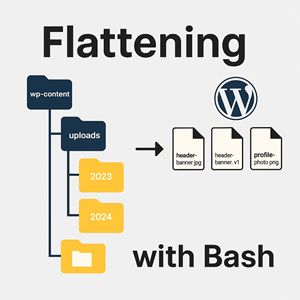
If you’ve worked with a WordPress site, you know that media files get stored in a nested year/month directory structure under wp-content/uploads. For example:
|
1 2 3 4 5 |
./wp-content/uploads/2023/07/header-banner.jpg ./wp-content/uploads/2023/07/header-banner-300x250.jpg ./wp-content/uploads/2023/08/profile-photo.png ./wp-content/uploads/2024/01/promo-flyer.pdf |
This structure is great for WordPress, but sometimes you need a single flat folder with all the files — for example, when migrating media, preparing datasets, or reviewing images in bulk.
The challenge? If the same filename exists in multiple places, simply copying everything into one folder risks overwriting files.
The Solution: A Bash Script
Here’s a lightweight Bash script that flattens a directory tree into a single folder, while automatically handling duplicate filenames by appending version numbers (_v1, _v2, etc.) after the extension.
|
1 2 3 4 5 6 7 8 9 10 11 12 13 14 15 16 17 18 19 20 21 22 23 24 25 26 27 28 29 30 31 32 33 |
#!/usr/bin/env bash # # flatten_copy.sh # Flattens a directory tree into a single folder. # If duplicate filenames exist, adds _v1, _v2, etc. # Duplicate numbering is appended *after* the extension. SRC_DIR="${1:-./wp-content/uploads}" DEST_DIR="${2:-./flat_output}" # Make sure destination exists mkdir -p "$DEST_DIR" # Walk the tree and copy files find "$SRC_DIR" -type f | while read -r f; do base=$(basename "$f") target="$DEST_DIR/$base" if [[ -e "$target" ]]; then i=1 newname="${base}_v${i}" while [[ -e "$DEST_DIR/$newname" ]]; do ((i++)) newname="${base}_v${i}" done echo "Copying duplicate: $f → $DEST_DIR/$newname" cp "$f" "$DEST_DIR/$newname" else echo "Copying: $f → $target" cp "$f" "$target" fi done |
How It Works
find "$SRC_DIR" -type f→ Recursively finds all files in the WordPressuploadsdirectory.basename "$f"→ Strips away the path so we’re left with just the filename.- Duplicate handling → If the filename already exists in the flat folder, the script creates
file.jpg_v1,file.jpg_v2, etc. - Safe copy → Uses
cpinstead ofmv, so your original uploads remain intact.
Usage
- Save the script as
flatten_copy.sh. - Make it executable:
12chmod +x flatten_copy.sh - Run it with defaults (source:
./wp-content/uploads, destination:./flat_output):
12./flatten_copy.sh - Or specify custom source/destination:
12./flatten_copy.sh /var/www/html/wp-content/uploads /tmp/all_media
Example Output
If your uploads folder contains duplicate files:
|
1 2 3 |
./wp-content/uploads/2023/07/header-banner.jpg ./wp-content/uploads/2024/01/header-banner.jpg |
The flattened folder will contain:
|
1 2 3 |
header-banner.jpg header-banner.jpg_v1 |
If a third duplicate exists, it will become:
|
1 2 |
header-banner.jpg_v2 |
Why This Is Useful
Flattening your uploads folder is handy when:
- Migrating media between WordPress sites.
- Exporting assets for use in a different CMS.
- Preparing datasets for machine learning or bulk optimization.
- Quickly reviewing images without navigating nested folders.
With just a few lines of Bash, you can save hours of manual work.
✅ Pro Tip: For very large sites, swap cp for rsync or mv depending on whether you need a copy or move.




