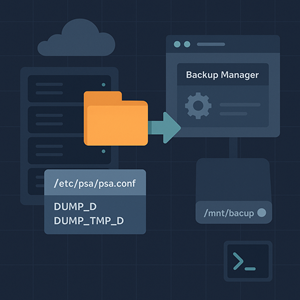
If your /var partition is tight or you’ve mounted a bigger disk just for backups, Plesk makes it easy to point backup data—and the temporary archives used during downloads—somewhere else. Below is a safe, copy‑pasteable walkthrough.
Works on Plesk for Linux (Obsidian and later). Steps are adapted from Plesk’s KB.
What we’re moving (and why)
- Backup storage (
DUMP_D): where Plesk keeps server, account, and domain backups. Default:/var/lib/psa/dumps. - Temporary backup files (
DUMP_TMP_D): used when Plesk composes a .tar/.zip to download or transfer. Default:/tmp. If/tmpis small, downloads can fail.
1) Choose and prepare your new locations
Pick paths on a filesystem with plenty of space (local disk, mounted volume, or NFS with proper permissions).
|
1 2 3 4 5 6 7 8 9 10 11 12 13 |
# Example destinations BACKUP_DIR=/mnt/backup/plesk_backups TMP_DIR=/mnt/backup/tmp # Create them mkdir -p "$BACKUP_DIR" "$TMP_DIR" # Required ownership/permissions chown psaadm:psaadm "$BACKUP_DIR" chmod 755 "$BACKUP_DIR" # for DUMP_D chmod 1777 "$TMP_DIR" # for DUMP_TMP_D (sticky bit, like /tmp) |
Plesk requires psaadm:psaadm and 755 for the backup directory, and 1777 for the temp directory.
2) Update Plesk’s config (/etc/psa/psa.conf)
Edit the file and set the two paths:
|
1 2 |
vi /etc/psa/psa.conf |
Change (or add) these lines:
|
1 2 3 4 |
# Backups directory DUMP_D /mnt/backup/plesk_backups DUMP_TMP_D /mnt/backup/tmp |
Save, then verify:
|
1 2 |
grep -v '#' /etc/psa/psa.conf | grep -wE 'DUMP_D|DUMP_TMP_D' |
You should see your new paths echoed back.
3) Move existing backups (and the hidden index)
If you already have backups, move them so Plesk still sees and manages them:
|
1 2 3 4 |
# Move current backups and the hidden .discovered directory mv /var/lib/psa/dumps/* "$BACKUP_DIR"/ mv /var/lib/psa/dumps/.discovered/ "$BACKUP_DIR"/ |
That hidden .discovered folder is part of Plesk’s backup catalog—don’t skip it.
4) Restart Plesk’s control panel server
|
1 2 |
service sw-cp-server restart |
Restarting sw-cp-server applies the change (it’s a quick bounce and doesn’t restart customer sites).
5) Test
- In Tools & Settings → Backup Manager, create a small manual backup and confirm it lands in your new
DUMP_Dpath. - Download a backup from the Backup Manager and watch a temp file appear in
DUMP_TMP_D. If/tmpwas previously too small, this resolves that failure mode.
Rollback (if needed)
Revert the two lines in /etc/psa/psa.conf to their previous values, move files back to /var/lib/psa/dumps/ (including .discovered/), and restart sw-cp-server.
Notes & gotchas
- Mounts first: If using a new volume or NFS, ensure it’s mounted at boot before Plesk starts, or backups will fail.
- Permissions matter:
psaadm:psaadmand755forDUMP_D;1777forDUMP_TMP_D. - Why move
.discovered/? It keeps Plesk’s backup inventory intact after the path change.




