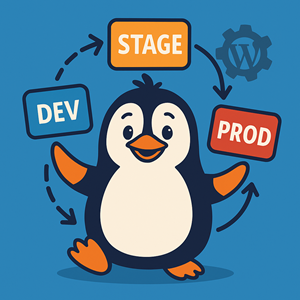
Most of the time, WordPress makes it feel like you never have to think about database migrations. You click “Update,” the site churns for a second, and everything just works.
That illusion breaks the first time you:
- Move a site between hosts or domains
- Add custom tables or complex plugins
- Try to keep local, staging, and production in sync
At that point you discover: WordPress does have a database story, but it’s very different from frameworks that ship with first-class migration systems (Rails, Laravel, Django, etc.). You’ll need a mix of core behavior, your own patterns, and some battle-tested tools.
This article walks through:
- How WordPress handles the database out of the box
- What developers can do to control schema and data changes
- Useful tools and plugins
- Common anti-patterns that cause downtime and painful rollbacks
How WordPress Handles the Database Out of the Box
A generic schema, one database per site
A fresh WordPress install creates a single MySQL/MariaDB database with a familiar set of tables: wp_posts, wp_postmeta, wp_options, wp_users, wp_usermeta, wp_terms, and so on.
The design is intentionally generic:
- Posts + custom post types store most content.
- Post meta holds arbitrary key/value data attached to posts.
- Options hold site-wide configuration and plugin state.
- User meta does the same for users.
When you first install WordPress, core uses an internal helper (dbDelta()) to create and adjust tables. It also records a database version (db_version) in the wp_options table. That version number is how WordPress knows whether it needs to run any schema changes during a core update.
How schema changes happen during core updates
When you update WordPress itself:
- Files are replaced with the new version.
- On the next admin request, WordPress checks the stored
db_version. - If the code’s
db_versionis higher than what’s in the database, it runs the upgrade routines – typically calls todbDelta()plus any data fixes.
Notice what’s missing: there’s no migrations folder you check into Git, no schema history stored alongside your code. Core owns the schema for the core tables and handles changes internally.
For small sites that live in one place, that’s fine. But as soon as you run multiple environments or heavy customizations, you need your own migration story.
Where Developers Directly Shape the Database
Most of the interesting migrations in WordPress come from themes and plugins, not from core.
Custom tables via plugins
Some plugins need their own tables for performance or clarity (think analytics, e-commerce orders, logging, queues). The common pattern looks like this:
- Activation hook
The plugin registers an activation callback withregister_activation_hook(). - Table creation
That callback builds aCREATE TABLEstatement for the custom table(s) and passes it intodbDelta(). - Plugin-specific DB version
The plugin stores its own schema/data version, e.g.my_plugin_db_version = 1, inwp_options. - Upgrade checks
On later loads, the plugin compares the stored version to an internal version constant. If they differ, it runs the necessary schema or data adjustments before updating the stored version.
This is effectively a mini migration framework living inside the plugin.
Avoiding schema changes with options & meta
Many theme and plugin authors avoid altering tables entirely and instead:
- Add new option keys in
wp_options - Store richer data as post meta or user meta
That’s very flexible and doesn’t require ALTER TABLE operations, but it can push complexity into application logic and make large sites harder to query and reason about.
The catch with activation-time migrations
Relying entirely on plugin activation for schema changes has some sharp edges:
- Activation only runs when a human clicks “Activate” in wp-admin.
- When you deploy new plugin code to production, you usually don’t “deactivate/activate” – so new schema changes don’t run.
- Heavy schema or data migrations during an admin page load can be slow and fragile, especially on high-traffic sites.
For anything more than a small change, you want more control than “hope the first request after deploy completes without timing out.”
Common WordPress Database Migration Scenarios
Most real-world migrations fall into a few buckets:
- Environment sync
- Keeping local, staging, and production similar enough that your tests are meaningful.
- Pulling production content down for debugging, but pushing only schema or specific configuration up.
- Domain and URL changes
example.comtoexample.orghttptohttps- Moving between
/blogand/, or subdomain vs subdirectory setups.
- Plugin or theme upgrades that change schema
- Major WooCommerce or LMS releases that introduce new tables, columns, or data formats.
- New features in custom code that require structural changes.
- Full-site migrations
- Moving to a new host, new infrastructure (e.g., Docker, Kubernetes), or a different stack.
- Cloning a site into staging or spinning up a test copy for a redesign.
WordPress doesn’t ship a single “do it all” mechanism for these. Instead you combine patterns, WP-CLI, and plugins to build a workflow that fits your team.
Strategies Developers Can Use to Control Migrations
Versioned migrations inside your plugin or theme
One robust pattern is to treat your plugin or theme as if it had its own tiny migration framework:
- Store a schema version in
wp_options(e.g.my_plugin_schema_version = 3). - Define incremental steps in code:
1 → 2: add a column, create an index, set initial defaults.2 → 3: backfill a new field, move data from an old option into a custom table, etc.
- On each
initoradmin_init, compare current stored version with the code’s latest version. - If they differ, run each intermediate step in order and update the stored version as each one completes.
This works well for:
- Custom tables via
dbDelta() - Controlled data migrations (
UPDATEqueries, batched processing withWP_Query, etc.)
Guideline: keep expensive work out of regular front-end requests. Limit “run on load” migrations to quick, idempotent actions, and move heavier jobs into WP-CLI or an explicit admin “Run migration” screen.
WP-CLI powered migrations
WP-CLI turns WordPress into a scriptable application and is one of the best tools you can add to your migration toolbox.
Out of the box you get:
wp db export/wp db importfor backups and restoreswp search-replacefor URL and path changes (with basic serialized data handling)wp core update-dbto trigger core DB upgrades manually
But the real power comes from custom commands:
- You can register
wp my-plugin migrateto run your own schema and data migrations. - Those commands can batch work, log progress, and exit cleanly on errors.
- You can integrate them into your CI/CD pipeline or runbooks (“before deploy, run X; after deploy, run Y”).
Because everything runs from the command line, you avoid PHP timeouts, you can schedule off-peak windows, and rollbacks are just “restore the backup” away.
Treating the database as an environment-specific artifact
Another pattern is to treat the database like any other environment-specific artifact:
- Production is the source of truth for content and users.
- Staging and development regularly refresh from production, either via full-site migration plugins or host-provided tools.
- Schema changes are tested on staging with a recent clone, then applied to production with backups and a clear rollback plan.
In that model:
- You don’t try to sync every change in every direction.
- You’re deliberate about what “flows up” (e.g., tested schema and config changes) and what “flows down” (content, orders, users).
It’s not as fancy as true schema version control, but it’s practical and works well with WordPress’s strengths.
Tools and Plugins That Help
WP-CLI
While it’s not a plugin, WP-CLI is worth calling out first:
- Scriptable exports/imports
- URL/domain search-replace that understands basic serialization
- The ability to run your own migration logic in a safe, repeatable way
If you manage more than one WordPress site professionally, WP-CLI is essentially mandatory.
Full-site migration plugins
A few widely used plugins make full-site migrations and clones much easier:
- All-in-One WP Migration – Simple UI to export an entire site (files + DB) into a single archive and import it elsewhere. Handles URL/path replacement for you. Good for small to medium sites and one-off moves.
- Duplicator – Builds a “package” of your site plus an installer script. Great for moving between hosts, creating exact clones, or taking pre-upgrade snapshots. Pro versions add scheduling, remote storage, and larger site support.
- WP Migrate / Migrate Guru / etc. – Dev-focused tools that often support push/pull between environments, larger sites, and multisite installs.
These are especially helpful when:
- You’re moving a site to a new provider.
- You want to clone production into staging with minimal fuss.
- You’re not ready to invest in a full custom automation pipeline.
Serialization-aware search/replace
WordPress stores a lot of data as serialized PHP arrays and objects (think widgets, complex plugin settings, page builders).
If you run a naive SQL REPLACE() on those strings, you’ll break them:
- The serialized representation includes string lengths (
s:18:"https://example.com";). - Changing the URL length without adjusting the prefix corrupts the data.
Safer options:
- Better Search Replace or similar plugins that know how to handle serialized data and let you pick specific tables, run dry runs, etc.
- Host-provided GUI tools (many managed WordPress hosts include a serialization-aware search/replace tool in their dashboards).
wp search-replacevia WP-CLI for many common cases, especially when you script it and test on staging first.
Database Migration Anti-Patterns in WordPress
Now for the “don’t do this” section. These are patterns we see again and again that lead to downtime, mysterious bugs, or painful rollbacks.
1. Running heavy migrations on every page load
Smell: A plugin checks its schema version on init and, if it’s out of date, runs a big migration right in the request.
Why it’s bad:
- Front-end users pay the performance penalty.
- On busy sites you can get overlapping migrations, table locks, or partial updates.
- If the request times out, you’re left in an unknown state.
Better: Keep the “on load” logic as a light gate that either:
- Defers heavy work to WP-CLI commands, or
- Triggers a background process / admin-only migration screen that runs in controlled batches.
2. Raw SQL search/replace on production without serialization support
Smell: Someone runs a manual UPDATE ... SET option_value = REPLACE(option_value, 'old.com', 'new.com') against the live database, usually via phpMyAdmin.
Why it’s bad:
- Serialized arrays and objects are easy to corrupt this way.
- You might miss important tables (e.g., custom tables used by page builders or forms).
- There’s no easy “undo” if you didn’t take a backup.
Better: Use WP-CLI’s wp search-replace, Better Search Replace, or your host’s tool – and always test on staging first.
3. Relying on activation hooks for all schema changes
Smell: “The plugin creates/updates its tables on activation, so we’re covered.”
Why it’s bad:
- Activations don’t happen on deploy – code gets updated without schema changes.
- On multi-server setups, it may never run on some nodes.
- If activation fails once, you can be left with half-applied changes.
Better: Use activation for initial install only, and handle upgrades via explicit version checks plus either:
- Small “on load” migrations for trivial changes, or
- WP-CLI/admin tools for heavier work.
4. Treating production like a development sandbox
Smell: Making schema changes, installing experimental plugins, or running destructive search/replace operations directly on the live site.
Why it’s bad:
- No safety net if something goes wrong.
- Weird transient bugs if you abandon half-finished experiments.
- Harder to reproduce issues later because there’s no clean baseline.
Better: Do risky work on a staging clone first. Only apply changes to production once they’ve passed basic checks, and always have a fresh backup and a rollback plan.
5. Editing core tables in place instead of using proper extension points
Smell: Adding custom columns directly to wp_posts or wp_users, or rewriting core tables instead of using meta tables or your own custom tables.
Why it’s bad:
- Core upgrades and plugins assume the default schema.
- Backup/restore and migration tools may not expect your changes.
- You’re coupling your application logic tightly to WordPress internals.
Better: Use:
- Custom post types + post meta for flexible content.
- User meta for additional user fields.
- Dedicated plugin tables (with clear prefixes) when you truly need a custom schema.
6. One-way environment sync with no plan for data collisions
Smell: Ad-hoc mix of “sometimes we pull prod to staging” and “sometimes we push staging to prod,” with no clear rules.
Why it’s bad:
- Risk of overwriting real user data with old test data.
- Confusion about which environment is authoritative for what.
- Hard to debug issues that only happen with “real” production data.
Better: Make your rules explicit:
- Production is the source of truth for content and users.
- Staging is regularly refreshed from production.
- Only schema and configuration changes move up from dev → staging → production, and those flows are documented.
A Practical Migration Playbook for WordPress
Putting it all together, a sane approach to WordPress database migrations looks like:
- Let core handle core – WordPress itself manages core table changes via updates.
- Add versioned migrations to your own code – Store schema versions in
wp_optionsand write small, incremental upgrade steps. - Use WP-CLI as your engine – Script backups, search/replace, and data migrations. Integrate them into your deployment process.
- Lean on good tools – For full-site moves and environment clones, use proven migration plugins instead of reinventing the wheel.
- Avoid the anti-patterns – No raw SQL on production, no heavy migrations on page load, no treating prod like a playground.
Handled this way, WordPress database migrations stop being “that scary thing we do by hand at midnight” and become just another part of your repeatable ops toolkit.




